You install Homebrew. During the first week you run brew update && brew upgrade religiously. The second week you do it every other day. The third week, whenever you remember. By month two, only when something breaks and you suspect an old version might be the problem.
This pattern repeats with every developer I know. Homebrew is the most widely used package manager on macOS, but its interface is exclusively terminal-based. No update notifications. No reminders. If you don’t run the command, you don’t know.
The problem gets worse when you have dozens of installed packages. Node.js, Python, Git, FFmpeg, ImageMagick, postgresql, redis, nginx. Each with its own update cycle. Some with critical security patches. But since Homebrew doesn’t notify you, you keep using versions with known vulnerabilities for weeks or months.
The typical situation goes like this: you’re developing a project, something fails with a cryptic message, you search Stack Overflow, discover the bug was fixed in a newer version, run brew outdated, see you’re three versions behind, update, and the problem disappears. Time wasted: two hours. Frustration: high.
The endless cycle of commands you never remember
Homebrew has commands for everything. The problem is remembering them and running them in the right order.
To see what you have installed: brew list. To see what’s outdated: brew outdated. To update the package index: brew update. To upgrade a specific package: brew upgrade name. To upgrade all: brew upgrade. To clean old versions: brew cleanup. To see services: brew services list. To start a service: brew services start name.
They’re simple commands individually. But nobody runs them as frequently as needed because they require opening terminal, typing, waiting, reading output. That’s enough friction to postpone it indefinitely.
What I needed was something that did the work without asking anything from me. That checked for updates automatically, notified me when something was pending, and let me update without typing commands. That lived in the menu bar, always visible, without taking up dock space.
BrewPackageManager: visual management from the menu bar
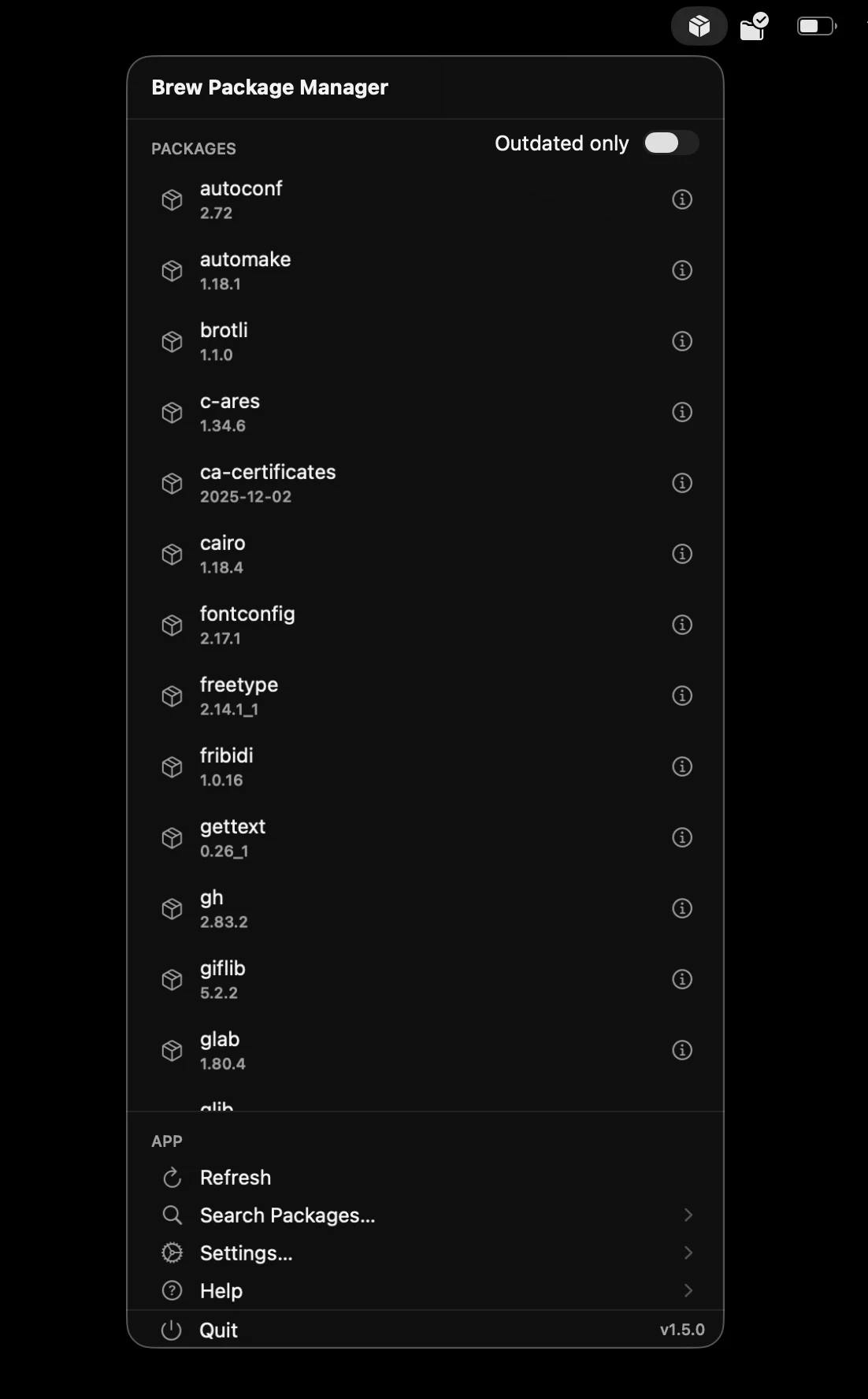
The solution is a native macOS app built with Swift 6 and SwiftUI that lives in the menu bar. A cube icon that changes based on status: normal when everything’s updated, with a badge when updates are pending, with spinning arrows when processing.
Clicking the icon opens a popover with the list of installed packages. Each package shows name, current version, and if outdated, the available version. You can select individual packages with checkboxes or use “Select All Outdated” to mark all that need updating. One click on “Update Selected” and the app runs the necessary commands showing real-time progress.
The app checks for updates automatically. You can configure the refresh interval in seconds or disable it if you prefer checking manually. Default is 24 hours, enough to stay current without constantly consuming resources.
Installation
The app requires macOS 15.0 or later and Homebrew installed. Homebrew must be at /opt/homebrew/bin/brew for Apple Silicon or /usr/local/bin/brew for Intel.
From the DMG:
- Download the DMG from the releases section on GitHub
- Open the DMG and drag BrewPackageManager.app to Applications folder
- Launch from Applications
The first time you run the app, macOS will ask for permission because it’s not signed with a developer certificate. Go to System Settings > Privacy & Security and allow execution.
If you prefer building from source, you need Xcode 16.0 or later:
git clone https://github.com/686f6c61/BrewPackageManager.git
cd BrewPackageManager
./create-dmg.sh
The script generates a DMG ready to install.
Package management: everything brew does, but visual
The main tab shows all installed packages. You can toggle between viewing formulas (command-line packages), casks (GUI applications), or both.
Each package has a context menu with options. Right-click to see detailed information: description, homepage, installed version, available version if there’s an update, source tap. You can also uninstall from the context menu with confirmation to prevent accidental deletions.
Search filters the list in real-time as you type. Useful when you have hundreds of packages and are looking for a specific one.
The update button runs brew update to sync the package index with remote repositories. This doesn’t update installed packages, only downloads information about what versions are available. It’s equivalent to updating the available packages list in any package manager.
To upgrade packages, select the ones you want with checkboxes and press “Update Selected”. The app runs brew upgrade for each selected package, showing progress. If any fail, it shows the error but continues with the rest.
Searching and installing new packages
The search tab lets you find packages available in Homebrew that you don’t have installed. Type the name or part of the name, select whether to search all categories, formulas only, or casks only, and the app shows the first 15 results.
The 15 result limit is deliberate. Homebrew has thousands of packages and showing all matches for “python” or “node” would generate an endless list. If your search has more than 15 results, the app suggests refining your term.
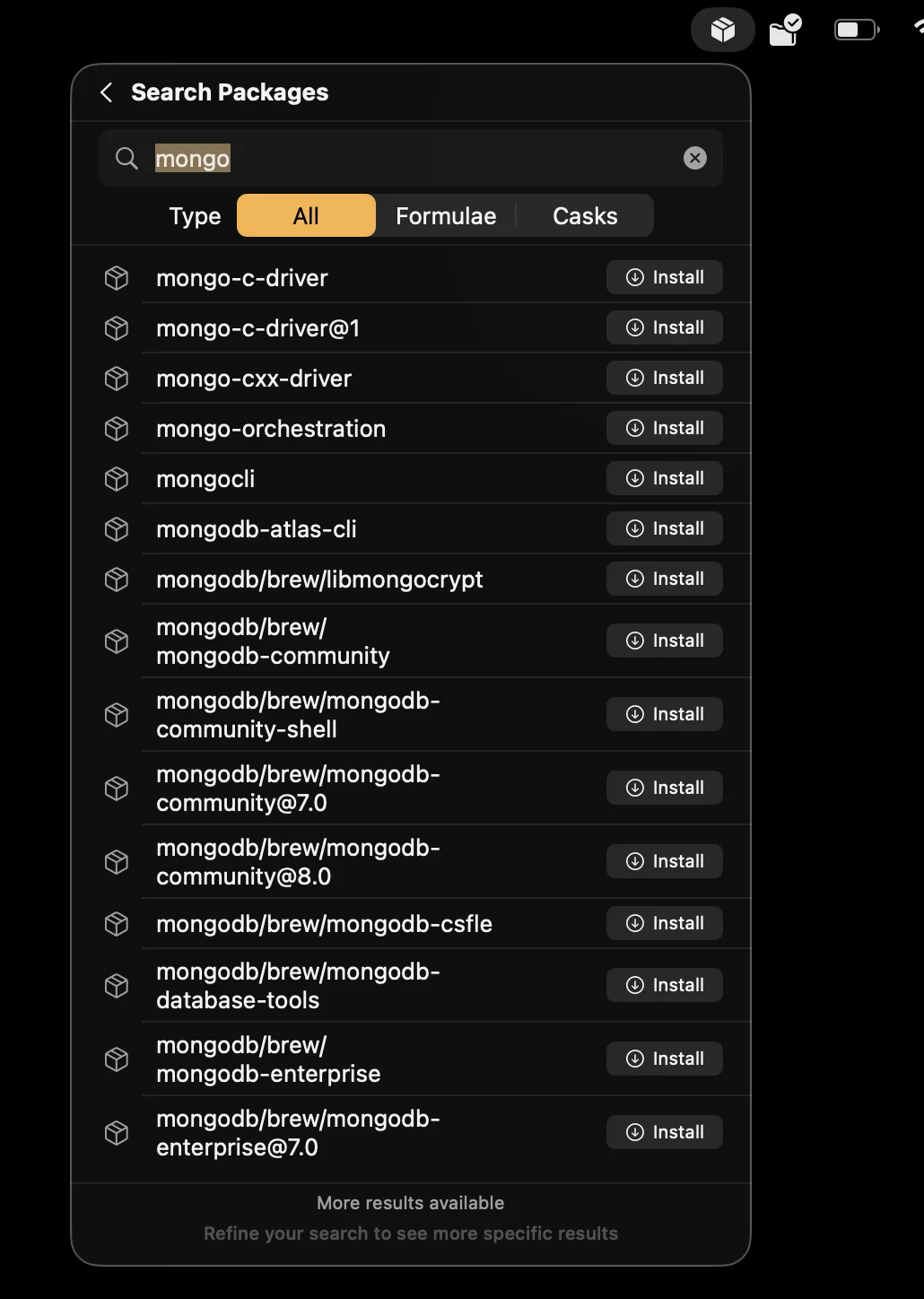
To install, select the package and confirm. The app runs brew install name and shows progress. Once installed, the package appears in the main list.
Service management
Homebrew can manage system services: databases, web servers, message queues. PostgreSQL, Redis, Nginx, MySQL. The services tab shows all available services with their current status.
Each service shows whether it’s running or stopped, the process PID if active, and which user runs it. You can start, stop, or restart services with one click. Status changes reflect in the interface immediately.
Statistics at the top show how many services you have active and how many stopped. Useful to see at a glance if everything’s running or if something crashed.
Cache cleanup and old versions
Homebrew keeps previous package versions in case you need to rollback. It also keeps downloaded files in cache. Over time, this takes up gigabytes of disk space.
The cleanup tab analyzes how much space old versions and cache occupy. It shows total size and offers two options: clean only old versions keeping the download cache, or empty everything including cache.
If cache exceeds 500 MB, the app shows an alert suggesting cleanup. It’s a reasonable threshold: enough to notice something’s taking up space, but not so aggressive as to constantly annoy.
After cleaning, the app shows how much space was freed. It’s satisfying to see you recovered 3 GB of disk with one click.
Dependencies
The dependencies tab shows which packages depend on others. Select a package and see three lists: direct dependencies (what this package needs to work), optional and build dependencies (only needed to compile from source), and reverse dependencies (what other packages depend on this one).
This information is critical before uninstalling something. If you’re going to remove a package that has reverse dependencies, you’ll break other packages. The app warns you before letting you make that mistake.
Statistics show total dependency relationships in your system. In a typical installation with 50 packages, there can be hundreds of cross-dependencies.
History and statistics
The app logs all operations: installations, updates, uninstallations, cleanups. History persists between sessions and stores up to 1000 entries.
You can filter history by operation type. View only installations, only updates, only errors. Each entry shows what operation was performed, on which package, when, and whether it succeeded or failed.
Statistics show the 10 most frequently installed or updated packages. Useful for identifying which packages you constantly update (maybe because they’re in active development) or which you’ve reinstalled multiple times (maybe because something’s not working right).
Data export
From settings you can export the complete list of installed packages to CSV. The file includes name, type (formula or cask), installed version, available version if outdated, source tap, description, and homepage.
Useful for documenting your development environment, sharing with teammates, or having a backup of what you had installed before formatting your Mac.
Configuration
The app has several configurable options:
Launch at login: Enable it so the app starts automatically when you turn on your Mac. This way you’ll always have the icon in the menu bar ready to notify you of updates.
Automatic refresh interval: How many seconds between automatic update checks. 0 disables automatic refresh. Default uses a value that checks approximately every 24 hours.
Outdated only mode: In the main list, show only packages that need updating. Useful if you have many packages and only want to see pending ones.
Debug mode: Enables detailed logging for troubleshooting. Logs are saved using macOS’s OSLog system and you can view them in Console.app.
Application updates
The app automatically checks if new versions are available on GitHub. Every 24 hours it queries the repository and compares with the installed version.
If an update is available, it shows a notification with the version number and changelog. You can update immediately, postpone with “Remind Me Later”, or mark that version as ignored if you don’t want to upgrade to it.
The update system is separate from Homebrew. The app updates from GitHub, packages update from Homebrew repositories.
Technical architecture
The app is built with Swift 6 using the language’s latest features: @Observable macros for reactive state, strict concurrency checking enabled, and SwiftUI for the entire interface.
The project structure separates responsibilities:
-
/Brewcontains Homebrew interaction logic. It parses JSON output from commands and converts it to strongly-typed Swift models. -
/Shellimplements infrastructure for running terminal commands. It uses asynchronous pipes to read stdout and stderr without blocking the interface. -
/Packagesmanages package state. It uses an actor to serialize operations and avoid race conditions when multiple updates run in parallel. -
/MenuBarcontains all SwiftUI views. The main popover, tabs, settings forms. -
/Settingspersists user preferences using UserDefaults. -
/Historysaves operation history in a JSON file in the Application Support directory.
Concurrency is designed to avoid common problems. BrewPackagesClient is an actor that serializes all Homebrew calls. This prevents two commands from running simultaneously and corrupting state. PackagesStore lives on @MainActor because all UI updates must happen on the main thread.
Homebrew commands run with specific environment variables to avoid side effects. The app sets HOMEBREW_NO_AUTO_UPDATE=1 so brew install doesn’t try to automatically update the index (we control that), and other variables that disable interactive behaviors.
Error handling uses an AppError enum with specific cases: Homebrew not found, command timeout, JSON parsing error, operation canceled. Each error has a descriptive message shown to the user.
Homebrew commands the app uses
The app exclusively uses Homebrew’s JSON API to get structured data instead of parsing plain text. This makes the code more robust because the JSON format is documented and stable across versions.
To list installed packages: brew info --json=v2 --installed
To see outdated packages: brew outdated --json=v2
To search packages: brew search --json=v2 <query>
To list services: brew services list --json
To clean cache: brew cleanup --prune=all
Modification operations (install, upgrade, uninstall) don’t have JSON format because they’re interactive, but the app captures stdout and stderr to show progress and detect errors.
Why a native app and not a webapp or CLI wrapper
There were alternatives. I could create a Node.js wrapper that ran brew commands periodically. Or a local webapp with Electron showing status in the browser. Or simply a cron job that sent notifications.
I chose a native macOS app for several reasons:
System integration: The menu bar is the natural place for monitoring tools on macOS. Always visible, doesn’t take dock space, accessible with one click.
Resource consumption: A native Swift app consumes minimal RAM and CPU compared to Electron or any JavaScript runtime-based solution.
Permissions: macOS allows native apps to run terminal commands without issues. Webapps need complicated workarounds to execute local commands.
User experience: SwiftUI lets you create interfaces that feel native because they are. Controls, animations, and behaviors are what a Mac user expects.
The downside is it only works on macOS. Homebrew also exists for Linux, but this app doesn’t. If there’s enough demand, I could create a Linux version with GTK or Qt, but for now the focus is on macOS where most Homebrew users are.
Use cases
The forgetful developer: You install the app, enable launch at login, and forget about it. When there are pending updates you’ll see the badge in the menu bar. Update with one click and get back to work.
The team with standardized environment: You export your package list to CSV. Share the file with the team. Each member can see what they should have installed and verify if something’s missing.
The developer with limited space: The cleanup tab notifies you when Homebrew cache grows too large. Free up gigabytes of space you didn’t know you were using.
The local services administrator: If you work with PostgreSQL, Redis, Elasticsearch locally, the services tab shows what’s running. One click to restart a service that hung.
The dependency curious: Before uninstalling something, check reverse dependencies. Avoid breaking other packages that depended on what you were about to delete.
Requirements and limitations
The app requires macOS 15.0 (Sequoia) or later. It uses operating system features that don’t exist in earlier versions.
Homebrew must be installed in the standard path. If you installed it in a custom location, the app won’t find it.
App Sandbox is disabled because the app needs to run terminal commands. This is a macOS limitation: sandboxed apps cannot execute arbitrary processes. The app cannot be distributed on the Mac App Store for this reason.
The app doesn’t request full disk access or camera or microphone permissions. It only runs brew commands and reads/writes to its own Application Support directory.
The code is on GitHub
The project is open source under MIT license. Source code is at github.com/686f6c61/BrewPackageManager.
You can build it yourself, modify it, or contribute improvements. Pull requests are welcome if they follow patterns established in the code and compile without warnings in strict concurrency mode.
The project reuses some components from BrewServicesManager, a previous MIT-licensed project from which I took inspiration for the command execution architecture.
If you find bugs or have suggestions, open an issue on GitHub. If the app is useful to you, a star on the repository helps others discover it.